
Overview
The Calculate Distance custom tool enables your AI assistant to compute the distance between two addresses or locations during a conversation. This is useful for service-area businesses (e.g., delivery, home services, moving companies) that need to determine if a customer is within range or provide distance-based pricing.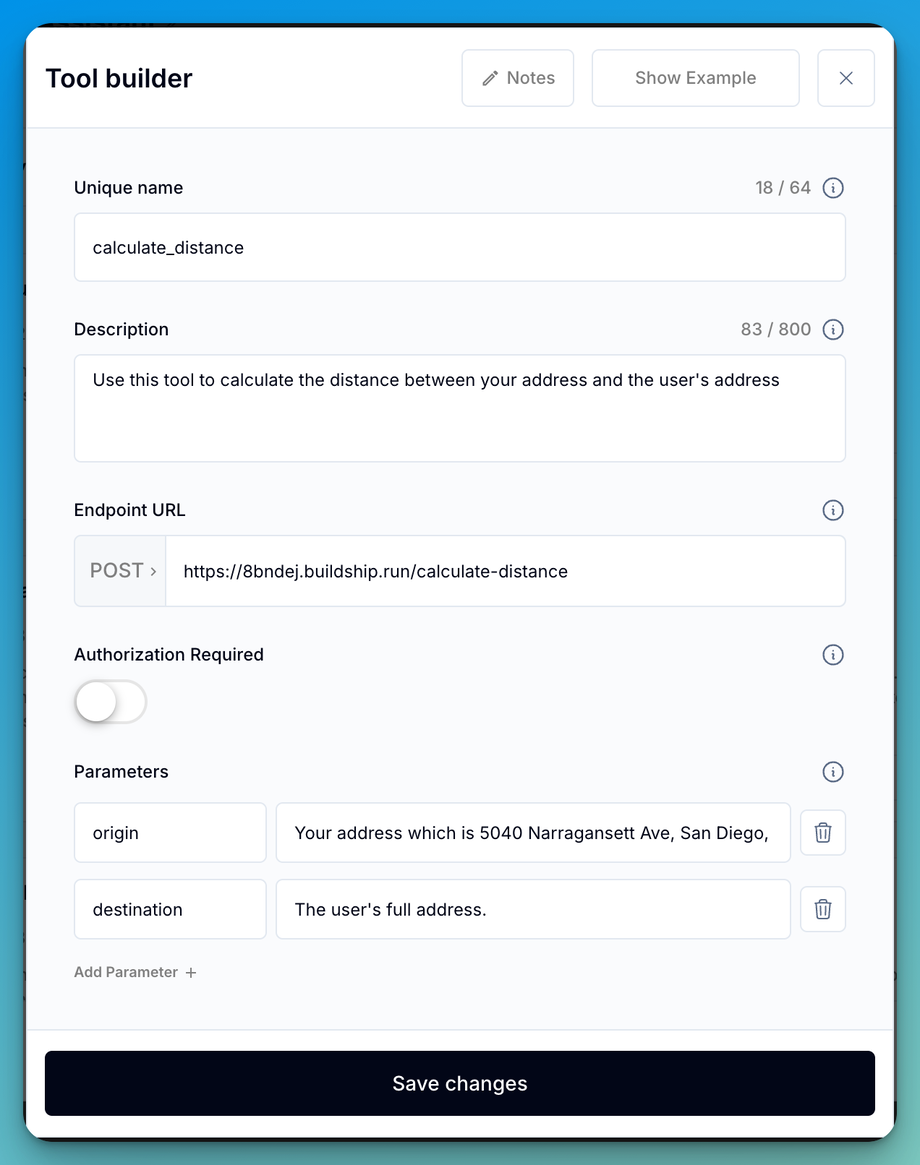
Use Cases
- Home service businesses — Determine if a customer’s location is within your service radius
- Delivery services — Calculate delivery distance for pricing estimates
- Moving companies — Provide distance-based quotes automatically
- Real estate — Calculate distance between properties and points of interest
How It Works
The tool accepts two location parameters (origin and destination) and returns the distance between them. Your AI assistant can then use this information to make decisions, provide quotes, or determine service eligibility.1
Create the Custom Tool
In your Assistable dashboard, navigate to your assistant’s Custom Tools section and click Create Custom Tool.
2
Configure Tool Parameters
Set up the following:
- Unique Name:
calculate_distance - Description: “Calculate the distance between two addresses”
- Parameters:
origin(starting address),destination(ending address)
3
Set Up the Backend
Use a service like Buildship or a custom webhook to call a distance API (e.g., Google Maps Distance Matrix API) and return the result.
4
Connect the Endpoint
Paste the endpoint URL from your backend service into the custom tool’s endpoint field and test the connection.
5
Add to Your Assistant
Save the tool and add it to your assistant. Update your prompt to instruct the AI when to use the distance calculation.
Related Pages
Custom Tools Overview
Learn the fundamentals of custom tools
Save Address
Collect and save user addresses
Search the Web
Add web search capabilities
Update Contact
Update CRM contact information