
Overview
The Update Contact custom tool enables your AI assistant to update contact information directly in GoHighLevel during a conversation. The AI collects information naturally and pushes it to the CRM — no manual data entry required.Since Version 2.1, Assistable includes a pre-built tool for this. This guide is helpful for learning how to build custom tools from scratch.
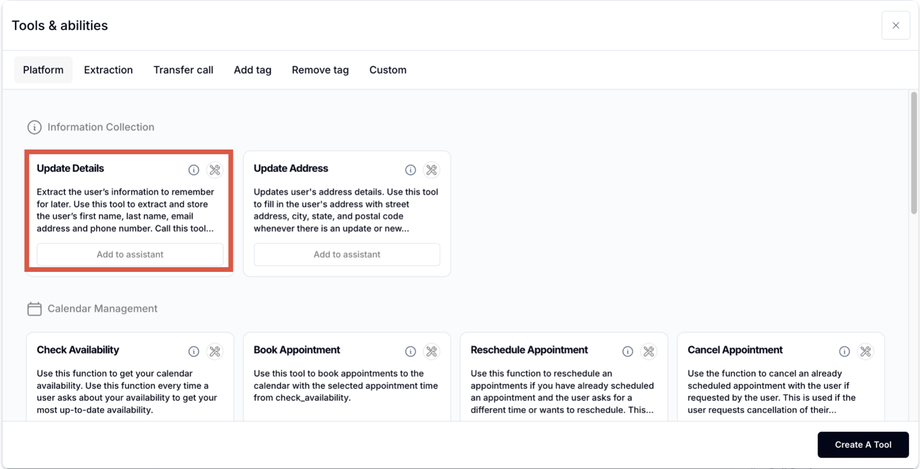
How It Works
The tool uses a GoHighLevel inbound webhook workflow:- AI collects data during conversation (name, email, etc.)
- Tool fires with the collected data as parameters
- Webhook triggers a GHL automation workflow
- Workflow finds contact by contact ID and updates the specified fields
Setup
1
Create the Custom Tool
- Name:
update_contact_info - Description: “Update the user’s contact information in the CRM”
- Parameters: Define fields you want to update (e.g.,
email,name,phone,company)
2
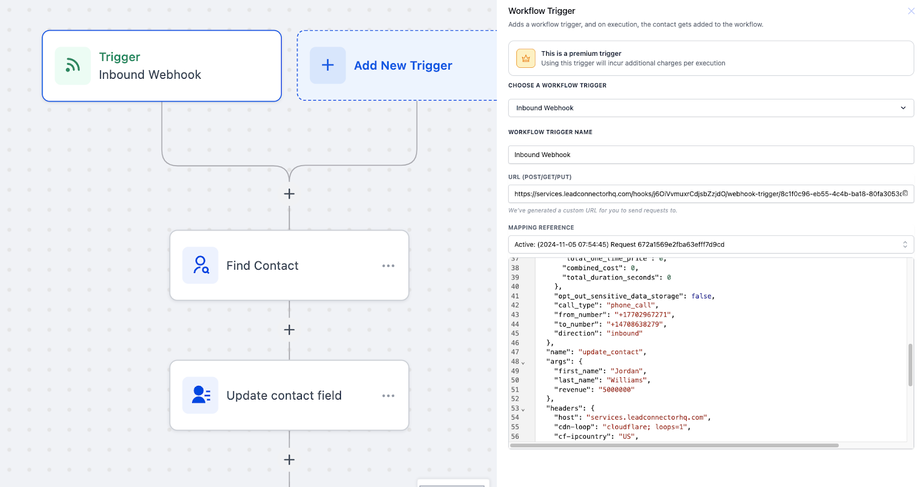
Create the GHL Webhook Workflow
- Go to Automations → Create new workflow
- Set trigger to Inbound Webhook
- Copy the webhook URL to your custom tool’s endpoint field
3
Find Contact by ID
Add a Find Contact action: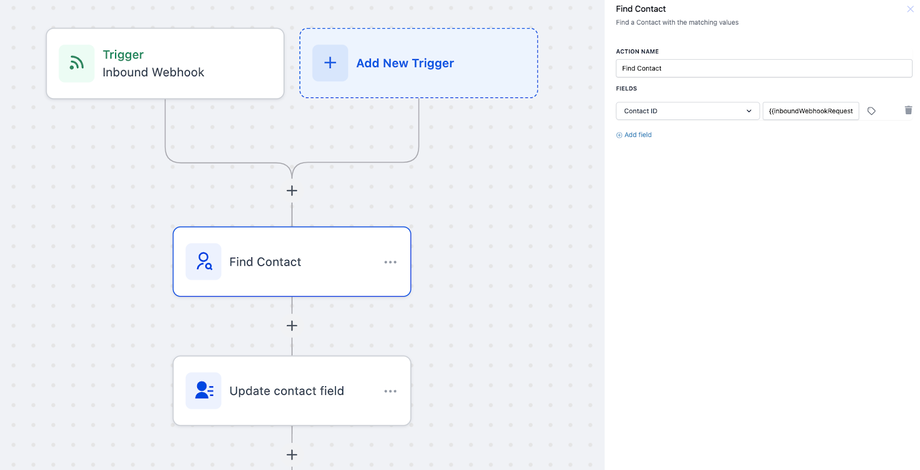
- Search by Contact ID using the
contact_idfrom the webhook payload
4
Map Fields from Webhook Arguments
Add Update Contact actions mapping each field from the webhook’s arguments: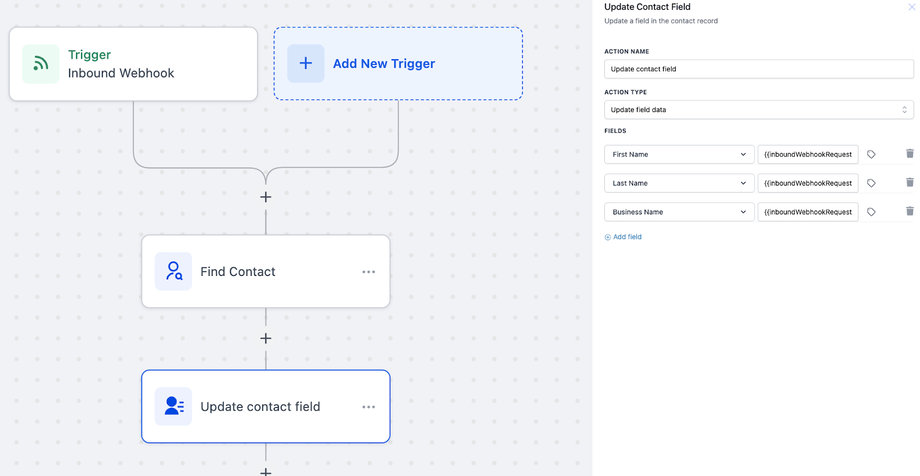
5
Save, Publish, and Test
Publish the workflow, then test by having the AI collect and update contact information during a conversation.
Related Pages
Save Address
Save user addresses to contact profiles
Data Extraction
Automatically extract user information
Auto-Populate Fields
Auto-fill custom fields
Custom Tools Overview
Custom tool fundamentals