
Overview
The Submit Support Ticket custom tool allows your AI assistant to create and submit support tickets on behalf of users during a conversation. When a user reports an issue that can’t be resolved immediately, the AI collects the details and submits a ticket to your support system.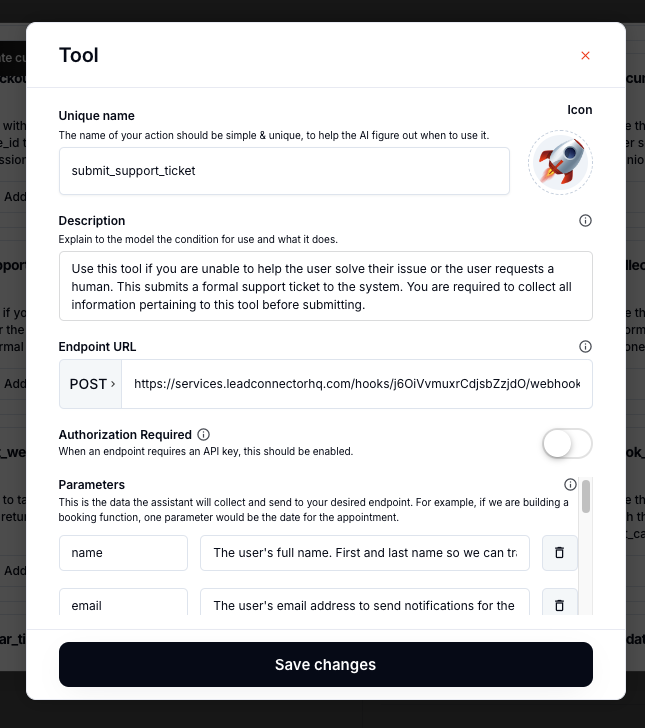
Use Cases
- Customer support — Escalate issues the AI can’t resolve
- Bug reports — Collect technical details and submit automatically
- Feature requests — Capture and route user feedback
- Service requests — Create work orders or service tickets
Setup
1
Create the Custom Tool
In your assistant settings, create a new tool:
- Name:
submit_support_ticket - Description: “Submit a support ticket on behalf of the user with their issue details”
- Parameters:
subject,description,priority(optional),category(optional)
2
Set Up the Backend Webhook
Create an inbound webhook in GoHighLevel (or your ticketing system) that:
- Receives the ticket data
- Creates a support ticket or task
- Notifies the appropriate team
3
Configure Your Prompt
Instruct the AI to:
- Try to resolve the issue first
- If unable, collect all relevant details
- Confirm the ticket details with the user before submitting
- Provide a confirmation after submission
4
Test the Flow
Simulate a support scenario and verify the ticket appears in your system with all details intact.
Related Pages
Update Contact
Update contact information in CRM
Send Summary
Send conversation summaries
Custom Tools Overview
Custom tool fundamentals