
Overview
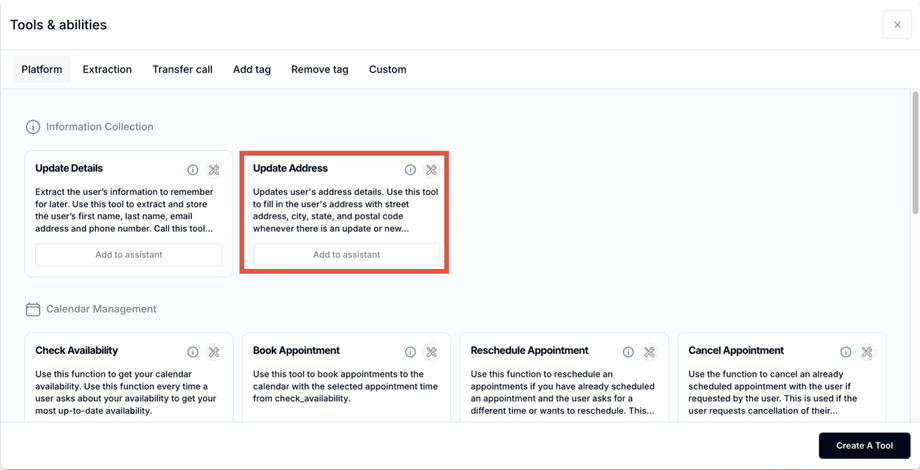
The Save Address custom tool enables your AI assistant to collect a user’s full address (street, city, state, zip code) during a conversation and save it directly to the contact profile in GoHighLevel. This is particularly useful for service businesses that need addresses for appointments, inspections, or deliveries.Since Version 2.1, Assistable includes a pre-built tool with this functionality. This guide is still useful for learning how to build custom tools from scratch.
Prerequisites
- AI Assistant Dashboard — Access to custom tool creation
- GoHighLevel CRM — Access to automation workflows and contact profile fields
- Endpoint URL — Generated from an inbound webhook
Step-by-Step Setup
1
Create the Custom Tool
In your assistant dashboard:
- Go to Assistants → select your assistant
- Under Custom Tools, click Create a Custom Tool
- Configure:
- Unique Name:
save_address - Description: “Use this tool to collect and save the user’s complete address including street, city, state, and zip code.”
- Parameters:
street,city,state,zip_code - Example Data: “54 State Street, Albany, New York, 12207”
- Unique Name:
2
Generate Endpoint URL via Inbound Webhook
- In GoHighLevel, go to Automations → create a new workflow titled “Save Address Webhook”
- Set Inbound Webhook as the trigger
- Copy the generated Webhook URL
- Return to your custom tool setup and paste the URL in the endpoint field
- Test the connection (look for a green checkmark)
3
Add Address Collection Prompt
In your assistant’s Prompts section, add instructions like:
“Ask the user for their full address, including the zip code. Once collected, call the save_address function.”
4
Map Address Fields in CRM Workflow
Back in the GoHighLevel automation:
- Click Fetch Sample Request to pull sample data
- Add a Find Contact action using
contact_idfrom the webhook - Add Update Contact Field actions mapping each field:
- Street Address →
Inbound Webhook > Arguments > street - City →
Inbound Webhook > Arguments > city - State →
Inbound Webhook > Arguments > state - Postal Code →
Inbound Webhook > Arguments > zip_code
- Street Address →
- Save and publish the workflow
5
Test and Validate
- Run a test conversation with your AI assistant
- Provide an address when prompted
- Check the contact’s General Info section in GoHighLevel
- Verify all address fields are correctly populated
FAQs
What if the address doesn't save correctly?
What if the address doesn't save correctly?
Ensure each address component (street, city, state, zip) is mapped to the correct field in the Update Contact Field action.
Can I adapt this for other data fields?
Can I adapt this for other data fields?
Yes — modify the tool parameters and field mappings to capture email, phone, or any other contact information.
What if the assistant doesn't capture the address?
What if the assistant doesn't capture the address?
Verify the custom tool is added to the assistant and that your prompt explicitly instructs the AI to call the tool after collecting the address.
Related Pages
Calculate Distance
Calculate distance from the saved address
Update Contact
Update any contact field in GoHighLevel
Auto-Populate Fields
Automatically fill custom fields
Data Extraction
Extract user information automatically