
Overview
Multi-calendar booking allows your AI assistant to manage appointments across multiple GoHighLevel calendars — for example, different service types (mortgage vs. refinance), different locations, or different team members. This guide walks through setting up the custom tools, Buildship workflows, and AI configuration needed.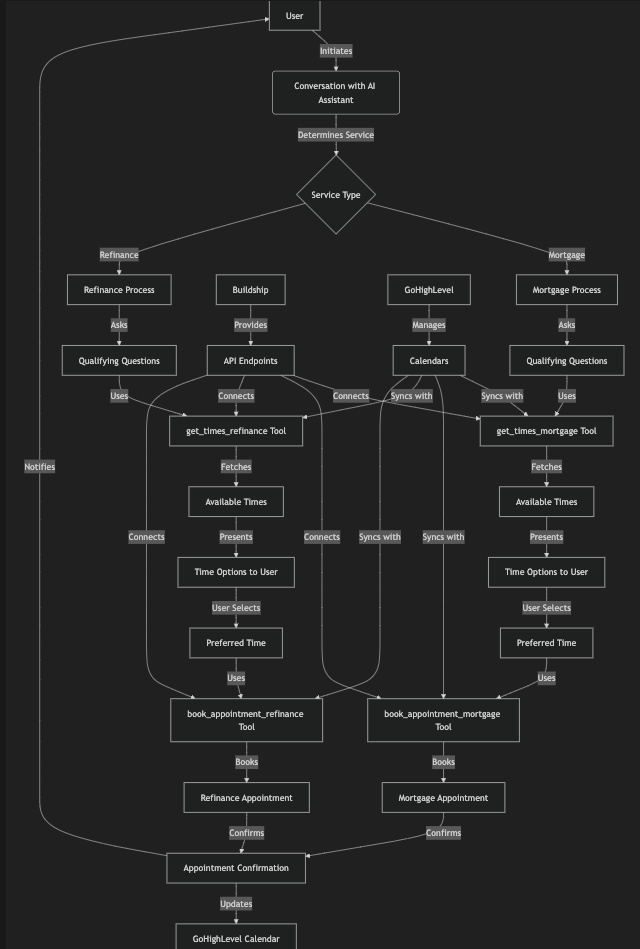
How It Works
For each calendar, you create two custom tools:- Get Available Times — Fetches open time slots from a specific calendar
- Book Appointment — Books an appointment on that calendar
Prerequisites
- GoHighLevel Account with multiple calendars set up
- Buildship Account to create and host API endpoints
- Assistable AI Assistant to add custom tools and configure prompts
Step-by-Step Setup
1
Set Up Calendars in GoHighLevel
Create separate calendars for each service type. For example:
- Mortgage Calendar for mortgage-related appointments
- Refinance Calendar for refinance-related appointments
2
Build 'Get Available Times' Tool in Buildship
Create a new Buildship workflow: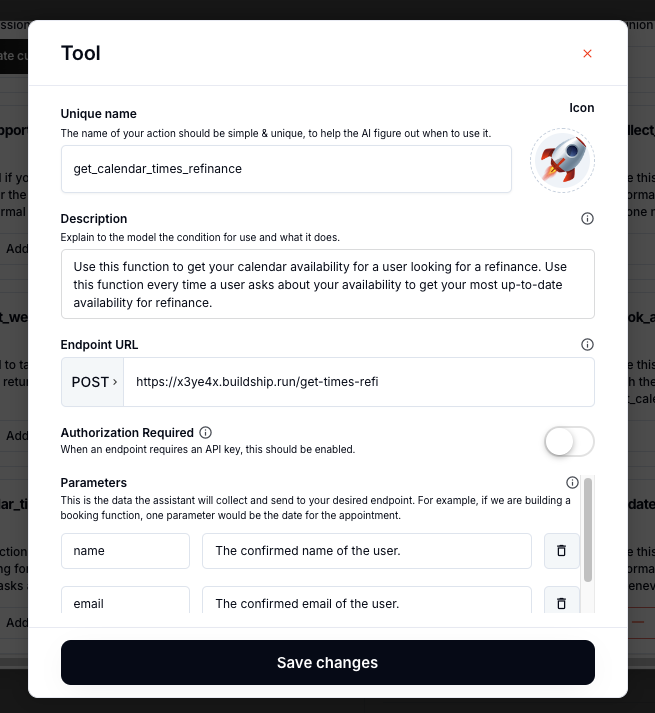
- Name:
get_times_mortgage(or your service name) - Method: GET request to GoHighLevel’s free time slots endpoint
- Query Parameters:
calendarId,startTime,endTime - Headers:
Authorization: Bearer YOUR_API_KEY
3
Build 'Book Appointment' Tool in Buildship
Create another Buildship workflow: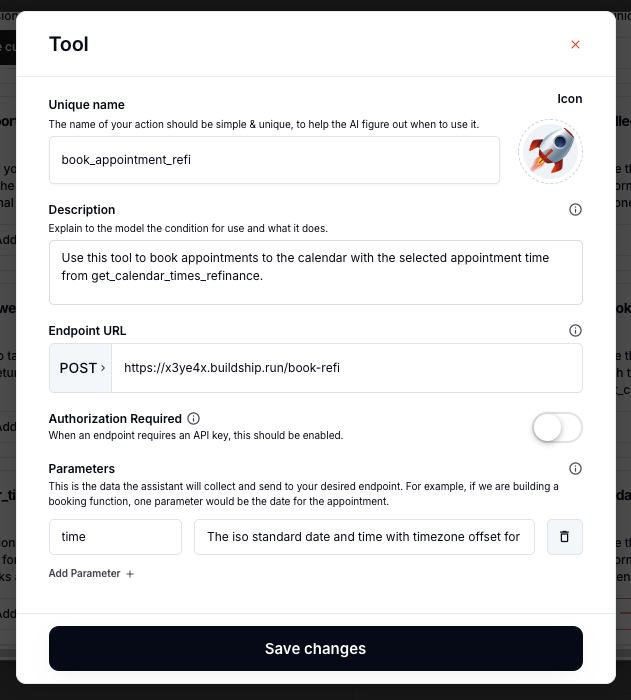
- Name:
book_appointment_mortgage - Method: POST request to GoHighLevel’s booking endpoint
- Request Body:
calendarId,contactId,locationId,startTime(ISO 8601) - Headers:
Authorization,Content-Type: application/json
4
Add Tools to Your AI Assistant
In Assistable, create custom tools matching your Buildship workflows:Get Available Times:
- Name:
get_times_mortgage - Description: “Fetch available times for the mortgage calendar”
- Endpoint: Your Buildship URL
- Parameters:
name,email
- Name:
book_appointment_mortgage - Description: “Book an appointment using the selected time from get_times_mortgage”
- Endpoint: Your Buildship URL
- Parameters:
time
5
Repeat for Each Calendar
Create the same pair of tools for every additional calendar (e.g.,
get_times_refinance, book_appointment_refinance).6
Update Your AI Prompt
Define the workflow in your prompt:
- Determine the service type (mortgage or refinance)
- Ask qualifying questions
- Use the appropriate
get_timestool to fetch availability - Present options and book via the matching
book_appointmenttool
7
Test the Setup
Simulate user interactions for each service type. Verify:
- Correct calendar is queried
- Appointments appear in GoHighLevel under the right calendar
- Contact details are accurate
Tips
Consistent Naming
Consistent Naming
Keep tool names uniform across Buildship and Assistable (e.g.,
get_times_mortgage in both places).Security
Security
Protect API keys using Buildship’s environment variables — never hardcode them.
Scalability
Scalability
Pass calendar IDs as dynamic parameters so you can add new calendars without creating entirely new tools.
Related Pages
Custom Tools Overview
Learn the fundamentals of custom tools
Calendar Booking Debugging
Troubleshoot booking issues
Data Extraction
Extract user data automatically
Flow Builder Guide
Build smarter AI flows