
Overview
The Scrape Website custom tool allows your AI assistant to fetch and read the contents of any website URL during a conversation. The scraped content is returned to the AI, which can then analyze, summarize, or answer questions about it.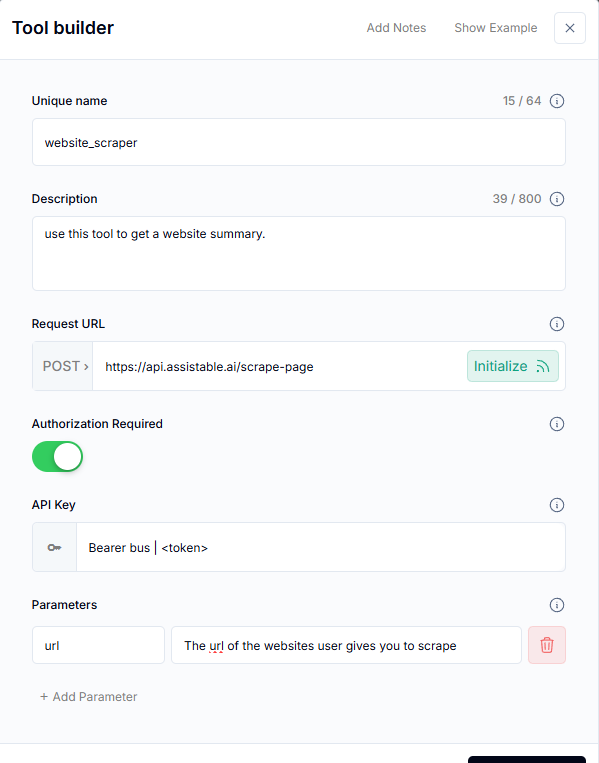
Use Cases
- Lead research — AI scrapes a prospect’s website to personalize the conversation
- Competitor analysis — Fetch and summarize competitor pages on demand
- Content verification — Check if specific information exists on a webpage
- Support — Pull documentation or help articles in real time
How It Works
The tool accepts a URL parameter, makes an HTTP request to fetch the page content, parses the HTML into readable text, and returns it to the AI assistant. The AI can then use this content as context for its responses.1
Create the Custom Tool
In your assistant settings, create a new custom tool:
- Name:
scrape_website - Description: “Scrape and return the text content of a given website URL”
- Parameters:
url(the website to scrape)
2
Set Up the Backend
Use Buildship or a custom webhook to:
- Receive the URL parameter
- Fetch the webpage content
- Parse HTML to extract readable text
- Return the text content to the AI
3
Configure Authorization
If your scraping endpoint requires authentication, add the authorization header in the tool configuration.
4
Add to Assistant and Test
Save the tool, add it to your assistant, and test by asking the AI to look up information from a specific URL.
Related Pages
Screenshot Website
Capture visual screenshots instead
Search the Web
Search the web with your AI
Custom Tools Overview
Learn custom tool fundamentals
Knowledge Base Optimization
Optimize your AI’s knowledge